You decide when
Click Back up to keep working, or Back up & shut down when you leave. The desktop shortcut is optional and off by default. Shutting down from the Start menu or the Apple menu, closing the lid, or sleep does not start a backup.
For the self-employed · Windows & macOS
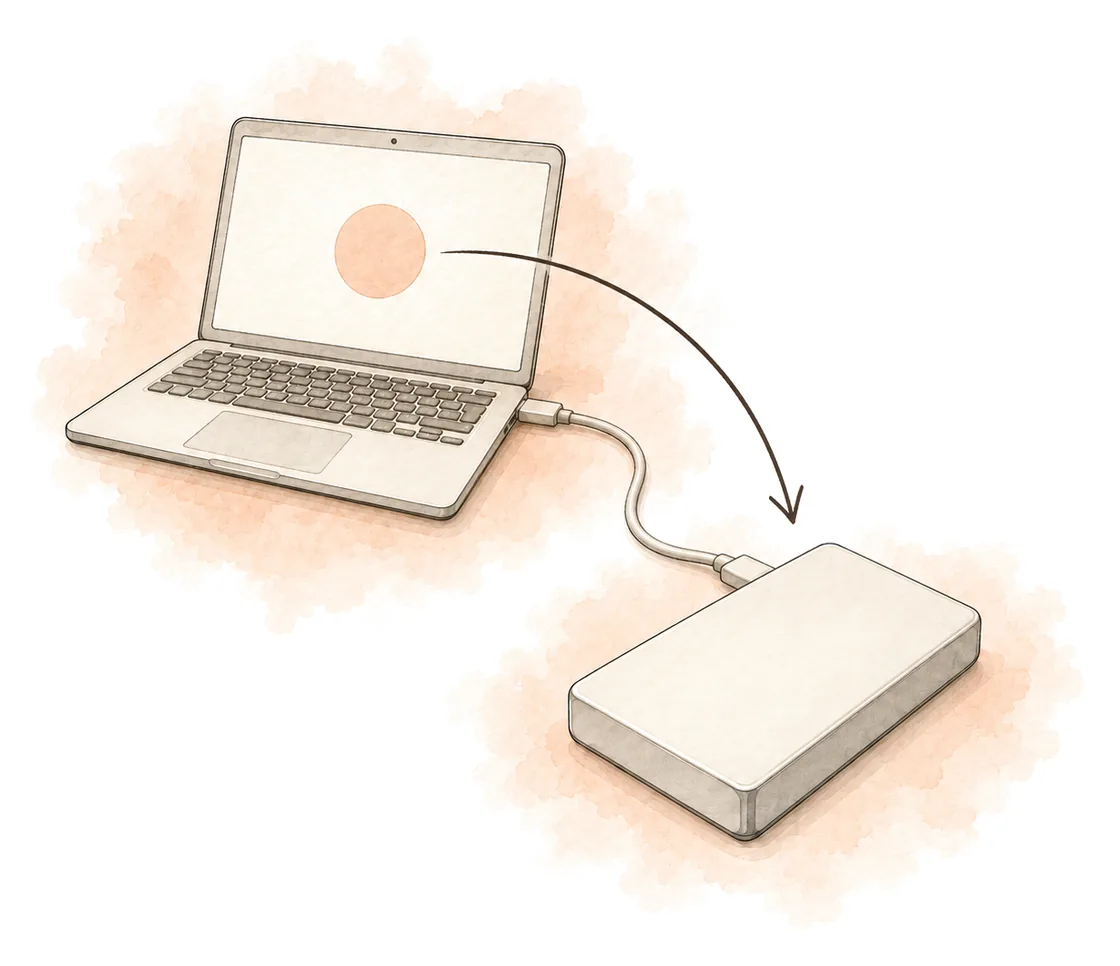
Your client and work files live on one computer, with no copy anywhere else. When the day is done, click Back up & shut down: the folders you chose are copied to a drive you own, you watch the run finish, and the computer turns off.
The scene shows the BackupOnShutdown window with two configured backups, the last-backup status and the buttons Back up and Back up & shut down.
How it works
Set up once. After that, the end of the day is a click you make yourself.
Documents, Pictures, Desktop, or any other folder — you can change the list later.
Choose enough space for your folders; an external drive suits large photo and video collections.
After a successful run the computer turns off — save other apps first.
What you get
You click, then watch it finish. You start every backup yourself.
Click Back up to keep working, or Back up & shut down when you leave. The desktop shortcut is optional and off by default. Shutting down from the Start menu or the Apple menu, closing the lid, or sleep does not start a backup.
The Restic engine copies new and changed files. Keep old versions, 1 year by default, keeps a mix of older copies. Forever keeps every saved version. The preset names are not a strict age cutoff.
Open a backup that is still on this computer's dashboard, click Restore files…, pick the date and the files, and choose where they go. A replacement computer with an empty dashboard is a different path — see Restore files in Help.

The maker
I'm Gerhard. Most people I know own a backup drive and rarely plug it in, because the software behind it was set up once and forgotten. BackupOnShutdown does not run in the background. When you finish, you click Back up & shut down, you watch the run, and the computer goes off.
Publisher & contact →No. BackupOnShutdown does not intercept the operating system. You start it: click Back up & shut down in the app, or double-click the desktop shortcut the app can create for you.
To the drives or folders you choose: a USB stick, an external drive, a second internal drive, or a network share such as a NAS. One backup can copy the same folders to several of those. There is no BackupOnShutdown cloud.
No. BackupOnShutdown copies the folders you choose, not the operating system, installed programs, or a system image. After a reinstall or on a new computer, restore the files in BackupOnShutdown and install your programs separately. See file backup vs system image.
The first run copies everything and depends on how much you selected and how fast the drive is. Later runs copy only new and changed files. The progress view shows what is left.
The backup stops and the computer stays on. Versions already saved stay in the backup; the next run starts fresh and again copies only what has changed.
In the app: open the backup, click Restore files…, choose the date, tick the files or folders and pick a destination. Nothing is overwritten unless you choose the original place and confirm.
Yes, if it shows up as a drive. A USB stick is a reasonable destination for documents. Pictures and video usually need an external drive. Leave room for older versions, and do not treat a stick as forever storage. See the backup locations guide.
No. Each person backs up their own computer: their click, their drive, and their licence. There is no central management. A network share can be a backup location if that computer can already open it. Five people need five licences.
Try BackupOnShutdown for 14 days on your own Windows PC or Mac. No account and no card.