For the self-employed · Windows & macOS

Watch the backup finish, then shut down.

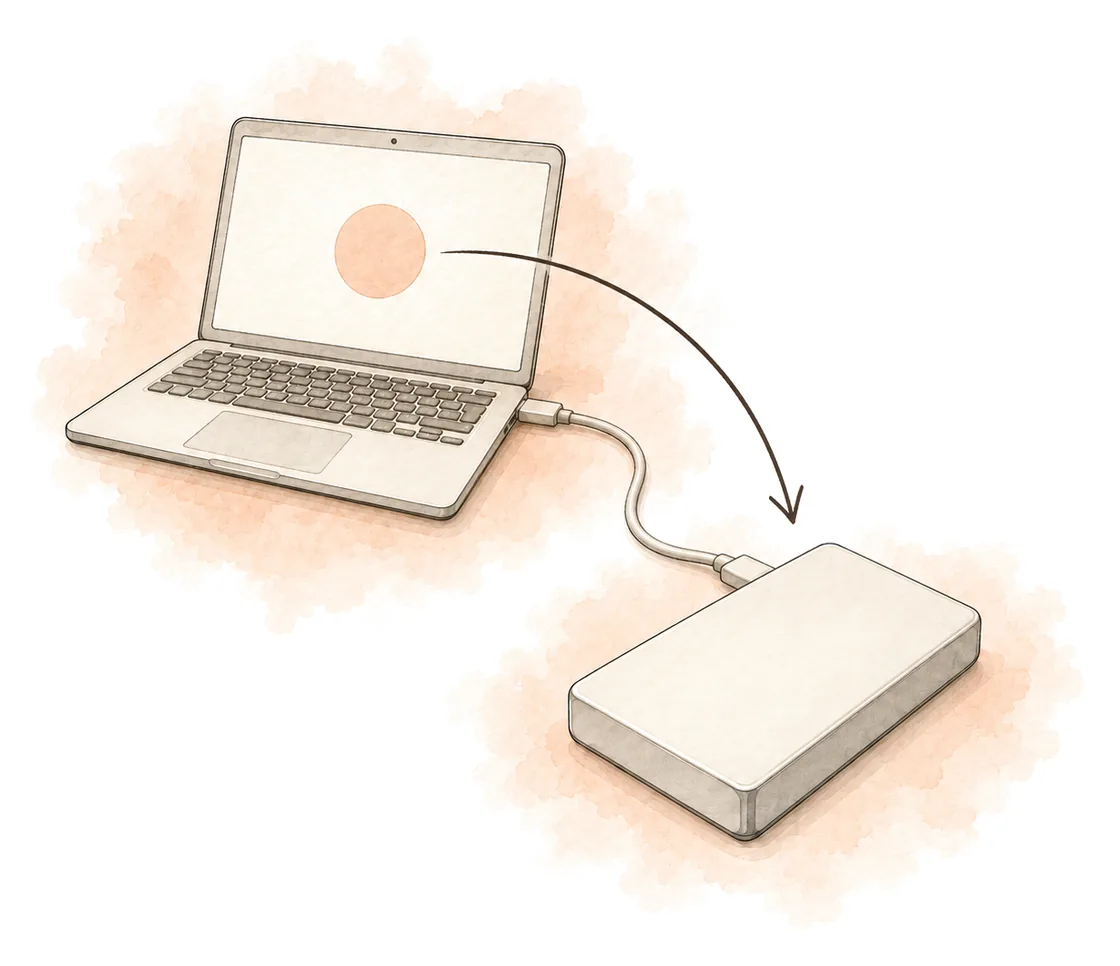
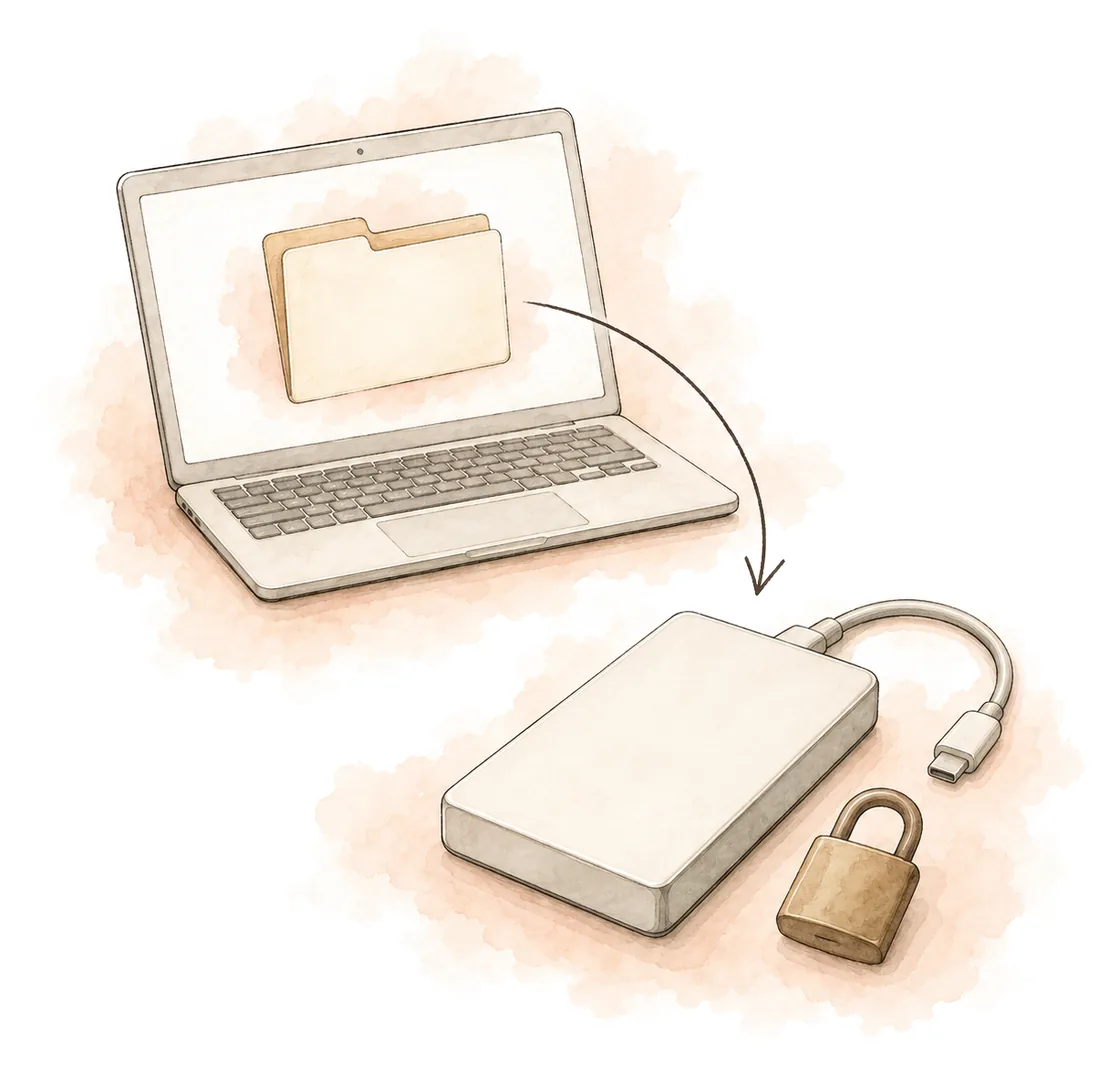
When the working day is done, click Back up & shut down. The folders you chose copy to a drive you own, you watch it finish, and the computer turns off.

  • 14-day trial, no account
  • Your own drives, no cloud
  • One-time purchase

What is on this page

Six capabilities, in the order they appear below. Jump to the one you came for.

You decide when it runs

Two buttons and a desktop shortcut. Nothing is copied until you press one of them.

  • Back up copies your folders and keeps the computer on, so you can read the summary
  • Back up & shut down turns the computer off after a successful run. On Windows that shutdown is forced, so save other apps first
  • The app can put a shortcut on the desktop. It is off by default, and one double-click skips the confirm dialog
  • Cancel stops the run and keeps the computer on; the versions already saved stay
  • Shutting down from the Start menu or the Apple menu, closing the lid or sleep does not start a backup

Your folders, your drives

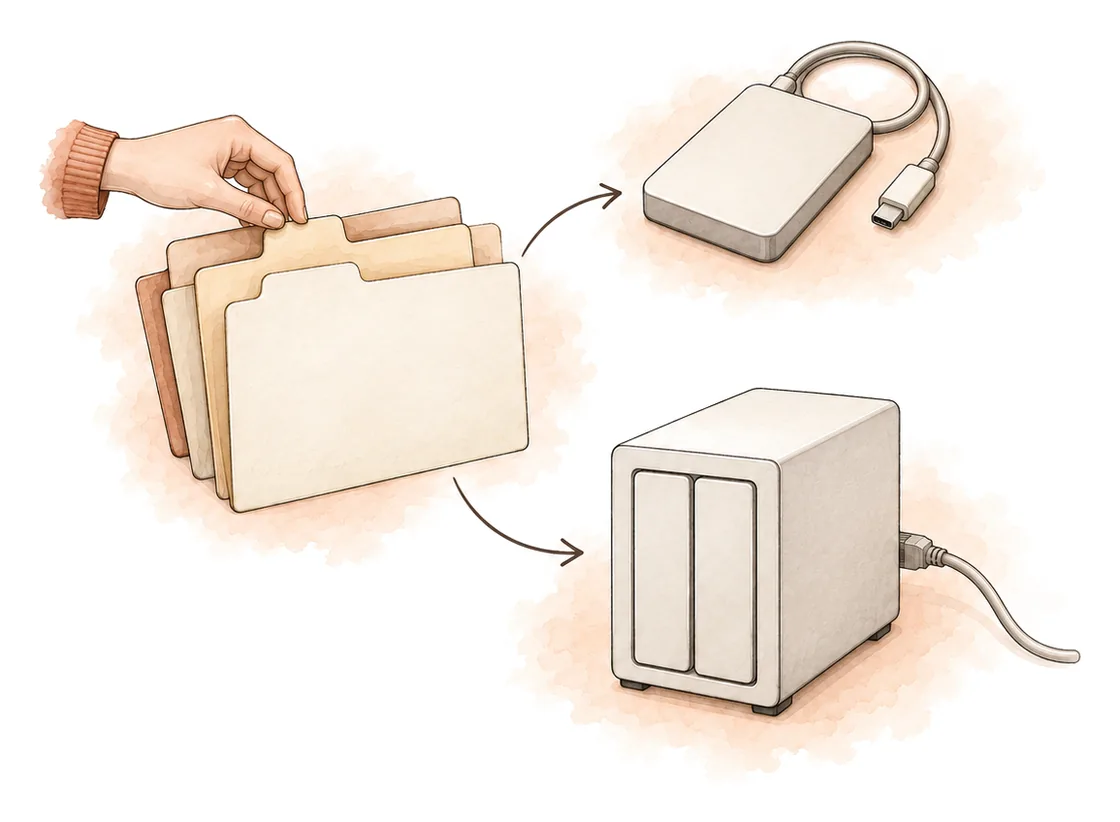
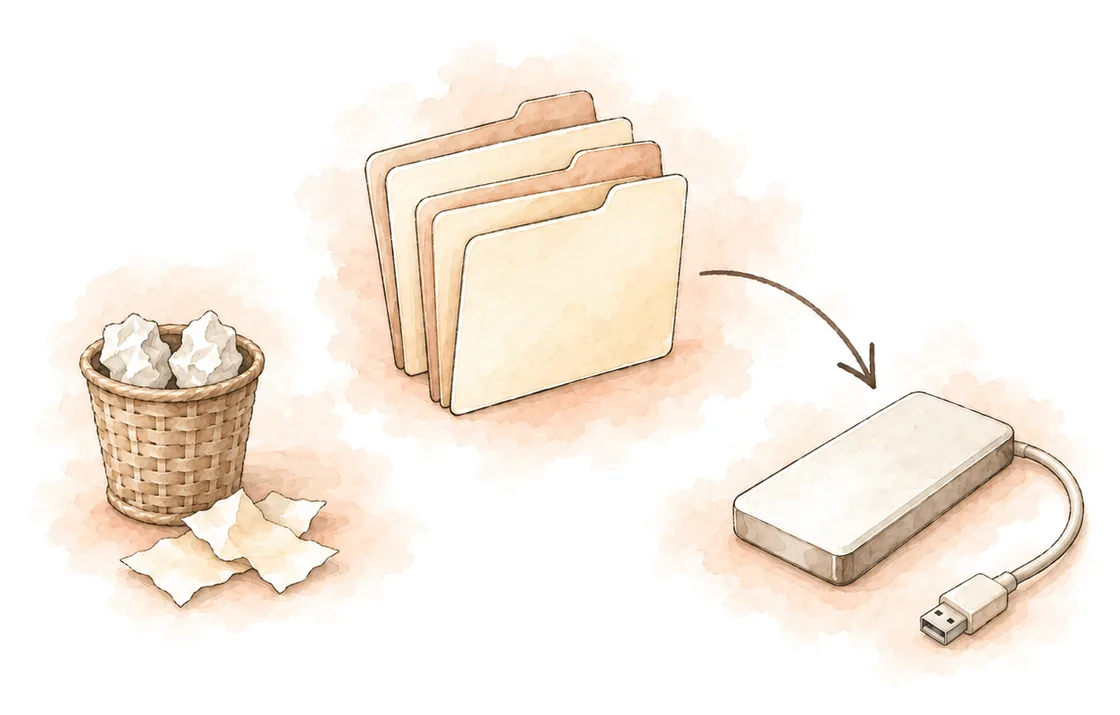
One backup holds several folders and one or more places to put them. Each run copies the folders to every location it can reach. Unplugged extra locations are skipped. If a selected backup has no reachable location, the run is blocked and the computer stays on.

  • Documents, Pictures, Desktop, or any folder you add with Add folder…
  • Folders you choose — not the operating system, installed programs, or a disk image
  • A USB stick, an external drive, a second internal drive, or a network share such as a NAS
  • Add location… copies the same folders to a second drive in the same run
  • Add another backup is a separate job with its own folder list and its own locations
  • There is no BackupOnShutdown storage to rent — the files go where you point them

Only what changed, kept as long as you want

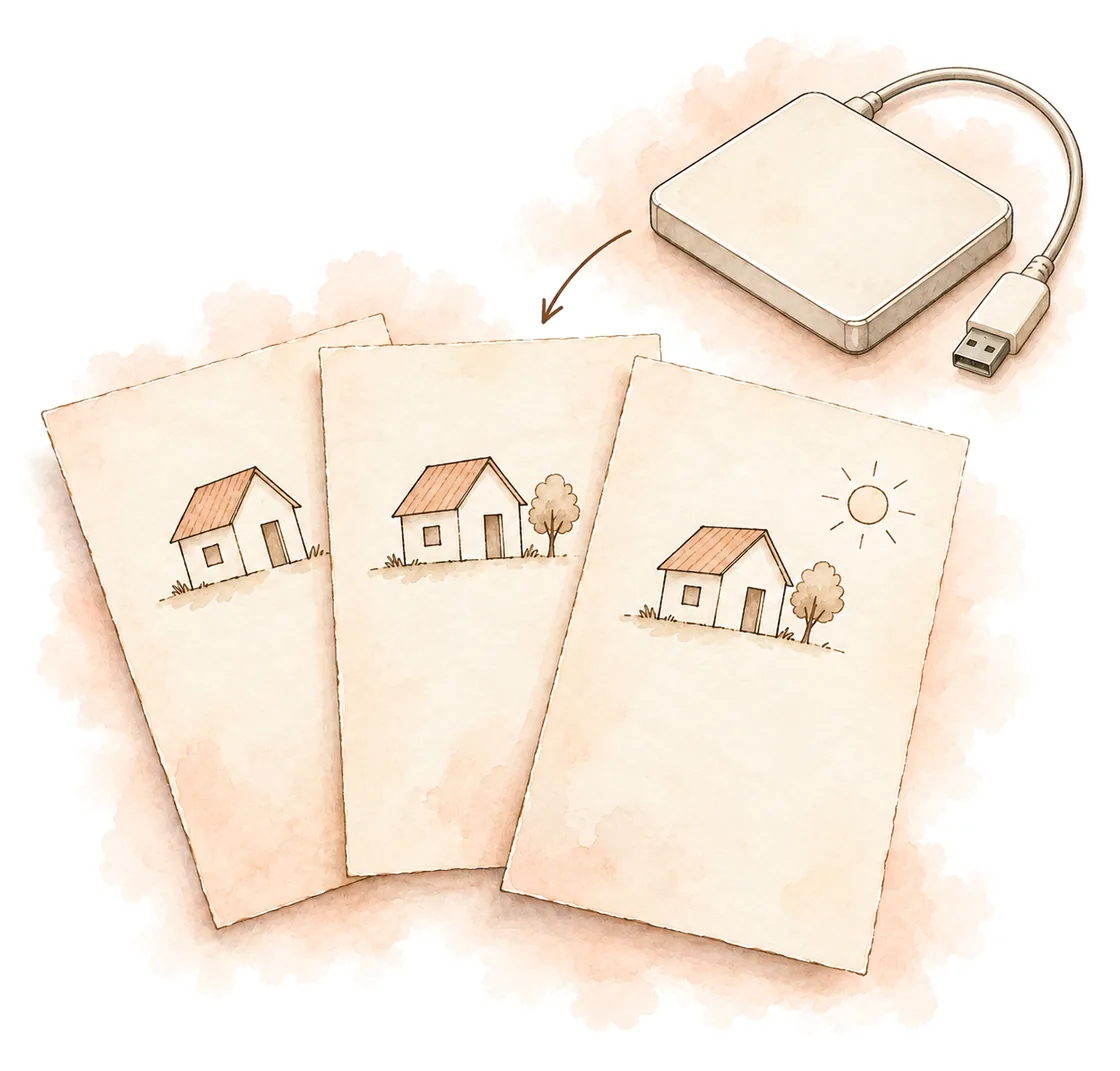
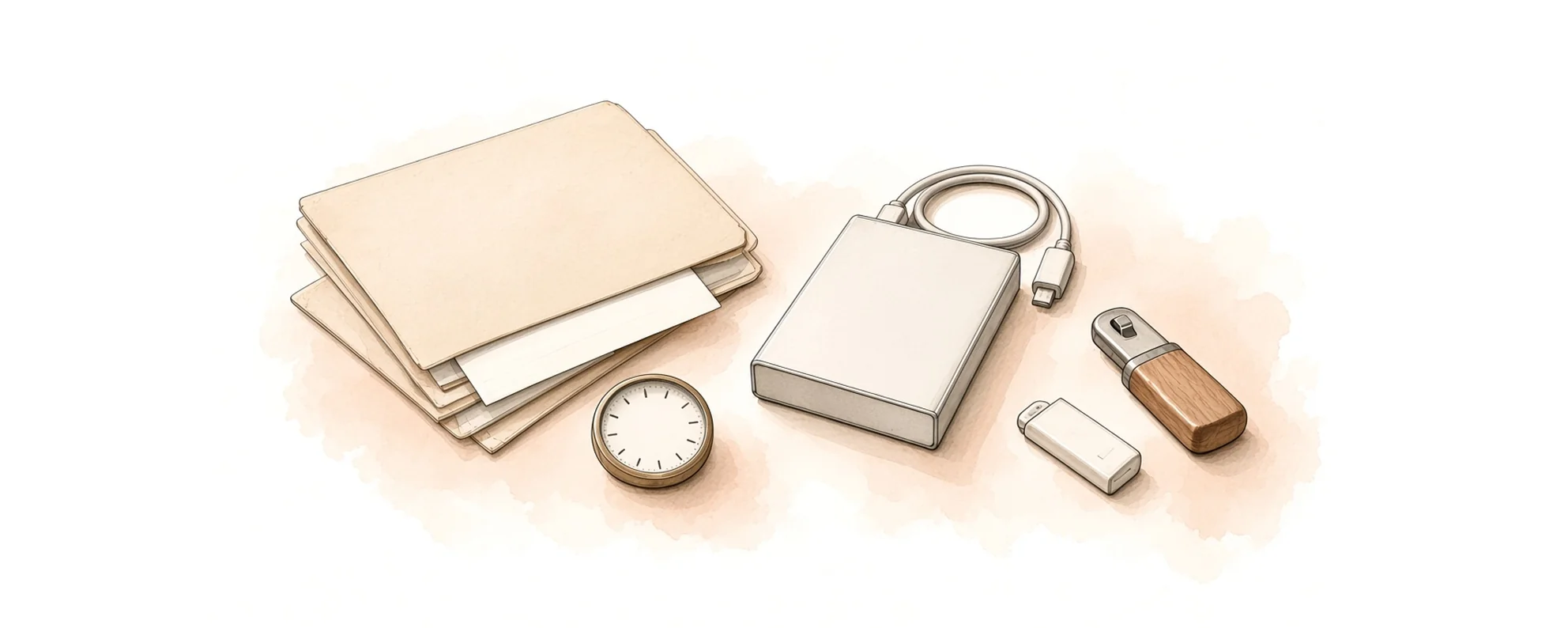
BackupOnShutdown runs on Restic. The first run copies everything you selected. Later runs copy what changed. Keep old versions applies to every backup and keeps a mix of daily, weekly, monthly, and yearly versions. Not every run is kept, and the names are not a strict age cutoff.

  • Incremental and deduplicated, so a later run on the same location is not a second full copy
  • Keep old versions: 1 month, 3 months, 6 months, 1 year, 2 years, or Forever
  • Your newest backup is always kept; Forever removes nothing at all
  • A limited preset trims older versions after a backup to save space, so you choose before the next run

Bring files back inside the app

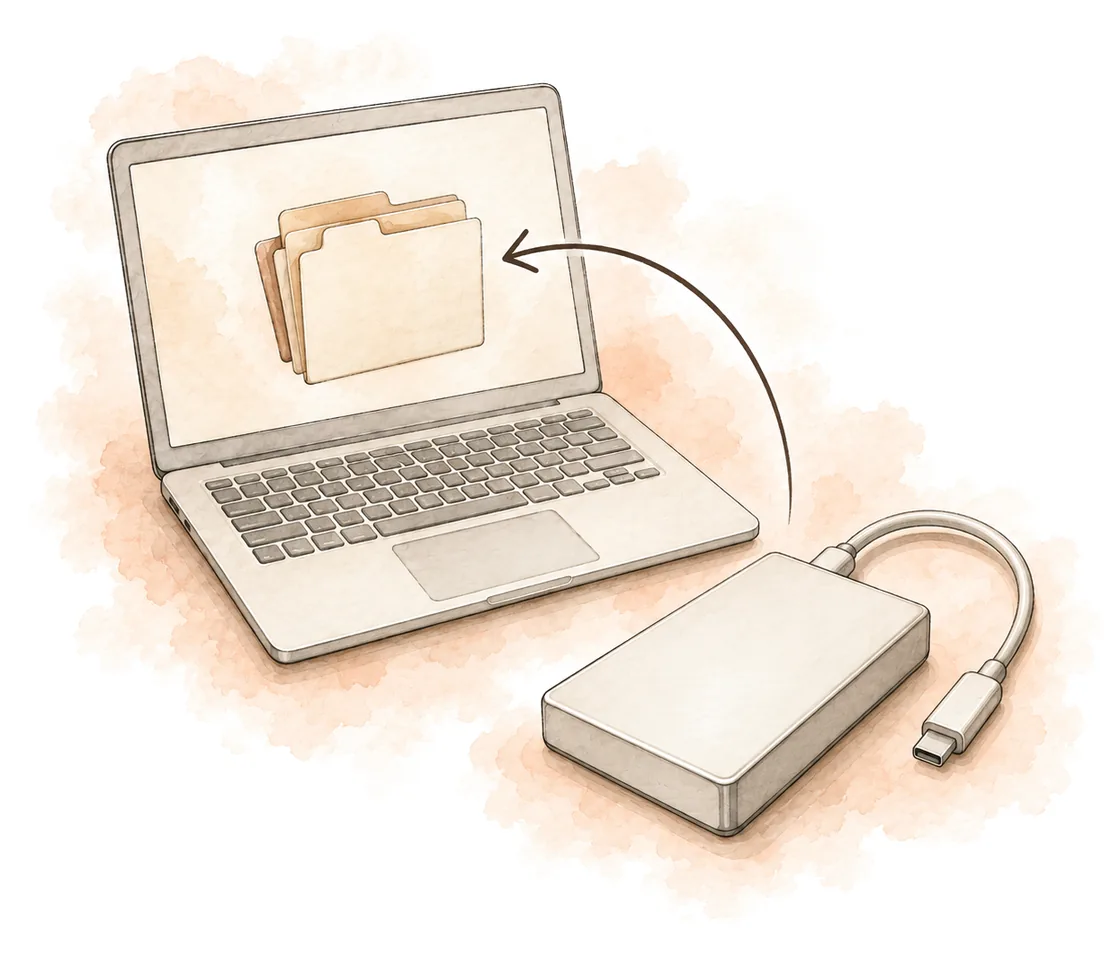
Restore files… opens on a backup that is still on this computer's dashboard and walks through the whole path. Test a restore before you rely on it.

  • Pick the location the backup is on, and enter its password if it has one
  • Choose the saved version by date
  • Tick single files or whole folders in the tree — Everything is one of the options
  • Choose where they land; nothing at the original place is replaced unless you pick it and confirm

Passwords, and files another program is using

Two things decide whether a backup is readable by the wrong person and complete for the right one.

  • Password protection is off by default. Anyone with the drive can open an unprotected backup. If you set a password, the app saves it on this computer in the system's protected storage (Windows data protection or the macOS Keychain). A lost password cannot be recovered
  • Add a password to any drive that leaves the house — it is what protects the copy on it
  • On Windows, files another program holds open are included only when you start BackupOnShutdown as administrator
  • Otherwise they are skipped and named in the summary, so you can close that program and run it again. On a Mac, files macOS does not let the app read are skipped and named the same way

What a backup leaves out

Each backup has its own Folders to skip list. Compression is a separate setting.

  • Folders to skip applies only to this backup, not as one global list. Find folders to skip… suggests rebuildable folders when a project file proves them, and nothing changes until you click Skip selected
  • Suggestions are node_modules, Composer vendor, Rust or Maven target, Python venv and .venv, Gradle build and .gradle, .next, .NET obj, and CocoaPods Pods. Temporary files and cache-tagged folders are always left out. The scanner does not suggest .git or dist; you can still add them to Folders to skip. There are no custom patterns
  • Compression is Automatic, Smallest, or Fastest
  • Settings such as compression stay drafts until you press Save. Cancel or Escape discards them. Folders to skip on a backup are saved immediately

Platforms, trial and licence

One payment, one named person, and a fortnight to decide.

  • Windows 10 and 11 (64-bit)
  • macOS 13 or later (Apple Silicon)
  • 14-day trial, no account
  • One-time purchase

The licence is for one named person and works on any number of that person's own devices. Your key starts with BKUP- and is checked on your device, so activation needs no internet connection.

When today's work is done

Try BackupOnShutdown for 14 days on your own folders and your own drive, then decide.